Showing posts with label Cr-48. Show all posts

Friday, April 20, 2012

Chrome 20 Has Landed On Chrome OS Dev: What Happen'?


I have a lot of mixed feelings, here. On the whole, I think I'm disappointed with how the OS has changed: I feel like a lot of precedence has been given to making the system feel like a traditional OS, rather than to ease of use . . . It's almost as though Google got freaked out it was too forward thinking and had to take a few steps back to a desktop-like feel.

Before, I could easily see what time it was, what my battery/network were like, and even if I had caps lock on. Now, if I want to see those things, I have to dedicate a solid chunk of my screen or flip my mouse down, anytime I want to see them (thank goodness for extensions like Cool Clock).

Why move the apps section to a spot only on the launcher? I liked before, how it was right on my new tab page, ready to go. I feel like I'm taking a step back, having to go all the way down to the tile icon, rather than typing ctrl+t.

Is the reworked OS a step forward or, ironically, a step backward?
What's with the hold and drag down to minimize a window?? Is that the revolutionary anti-desktop thinking in this version?

What happened to the keyboard shortcuts to re-size windows?

WHAT HAPPENED TO PANELS??!!? Panels were one of my favorite parts of Chrome OS. I gather that whole concept's been jettisoned. WHY OH WHY?

This is a smattering of my initial reactions. Maybe things will change or maybe I'll get used to the newfangled-ness.

At the end of the day, I feel like I'm using a glorified Linux without the native applications. What gives, Google?

Am I simply having a knee jerk reaction, or has anyone else had similar reactions?

Wednesday, October 5, 2011

(Very) Basic Image Editor Lands in Chrome OS 0.16.1122.0

Some of us wanted it (at least I did) and the Chrome OS team supplied it:  A basic image editor.  Sadly, for me, it's one feature short of the main feature I cared about:  Blur/smudge.  Ah, well, at least it has crop.

Really, though, is this some secret plot for me to keep using Picnik, even though I much prefer image editors like Awesome Screenshot or Aviary Image Editor?  Sigh.

Also new in this build:  The Wi-Fi icon now has lines on it to more clearly delineate current signal strength, I assume (I actually suggested this a while back and am less thrilled with it, in practice); the plus tab button is now an inchoate + button . . . once I hover my mouse over the empty diamond, the + comes to life!  I can appreciate the hip GUI-ness of it, and I can also see some folks (especially those over 50) scratching their heads about where the plus tab button is.

This is the extent of what I, and at least WReithmeyer, have noticed that I consider worth mentioning.

What hidden goodies have you guys noticed that you'd like to add to the pile of fun? 

Click the Gallery button and . . . 
Now we can auto-fix, crop, brighten, rotate, or undo to our heart's content (or upload to Picasa, via Share button).
Maybe blur/smudge will arrive by Christmas -- sorry, Winter Solstace.
P.S.  Gotta love getting the green, your-update-is-ready icon (especially for an OCD update freak, like myself).

Friday, September 9, 2011

A Potpourri of Updates in Chrome OS 0.15.1011.0

Chrome OS dev 0.15.1011.0 landed, tonight, and I'd like to share a few observations:

File manager gets, well, a file cabinet icon (rather than the empty box logo)
The bookmark manager now has (or has had, and I'm just  finally noticing it) a link in the
Bookmarks section of the New Tab page
Extensions are now included in and redirected to the settings page, with a fun makeover, recently sighted by Dinu
Correction:  Wrench>Tools>Extensions navigates to the old page, rather than this one -- I assume this will change
Synced tabs and search engines are almost here!
(Well, technically, they are here, as flags)
Lazy Background Pages -- some extensions can be prevented from running until they are called upon -- cool
Update:  I tried this out and it seems to disable LastPass and possibly other extensions, too:
you might want to wait for this one
What else have you guys noticed?  Thoughts/comments?  Again, I also want someone to tell me what happened to multiple profiles, as a flag . . .

OH, I almost forgot to mention the boot up screen now has a Chrome-y animation and white background.  Okay(?).

Thursday, September 1, 2011

Print Preview Lands in Chrome OS (Sort Of)

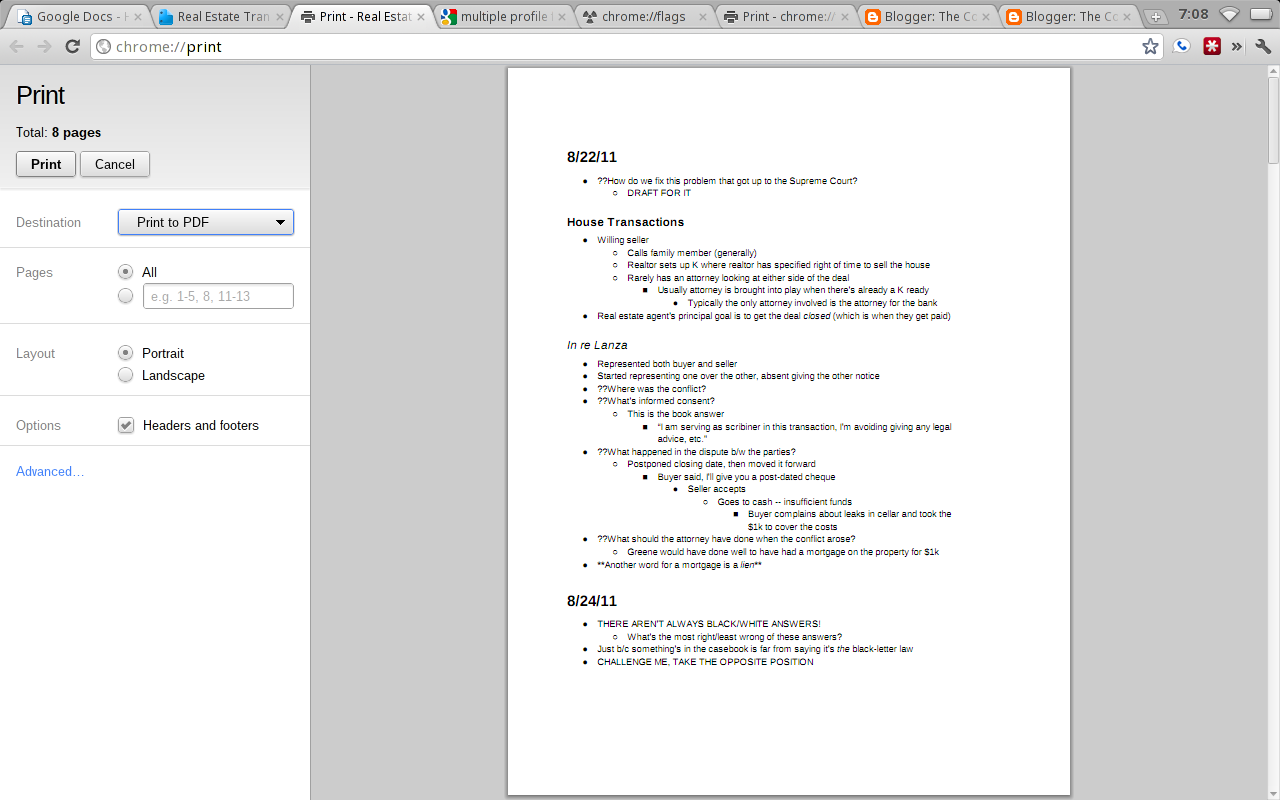
You may recall how, a few weeks ago, I lamented Chrome OS's lack of print preview.  Print preview fans, strap on your seat belts because print preview has landed in Chrome OS . . . as a flag.  In case this term sounds new, go to about:flags or chrome://flags, to see the myriad EXPERIMENTAL features for chrome/chrome os there.  Frankly, I strongly suggest you avoid enabling a flag unless you're determined to have it (as I am with click-to-play and print preview).  With that caveat, behold the screenshots:

Is the add/remove URL headers/footers new to print preview, or just new to me?
Who knew my Real Estate Transactions notes could look so good?
Ah, spreadsheet print preview!
So, there you have it.  In my very brief tests, I ran into only one page that failed to load a preview correctly, and I was able to do a refresh, and it worked fine.  While I'm sure there will be plenty of hiccups, here and there, you may want to give the print preview flag some love, especially if you love print preview like I do.

By the way, the whole reason I blundered upon this flag, in the first place, was because I was searching for a multiple profiles trigger.  Renji, or anyone else, how can I set up multiple profiles on Chrome OS, inside one account, like I can on a dev/canary Windows build of Chrome?

Thanks for reading, and happy previewing!

Tuesday, August 30, 2011

Omnibox History Sync Now Available in Chrome

P.S. I forgot to mention Dinu spotted this in Chromium, back in May: http://chromestory.com/2011/05/google-chrome-to-sync-typed-urls-and-browsing-sessions-now-in-chromium/

Omnibox History Sync, now available
Well, folks, the picture and caption say it all.  I updated my Cr-48 this morning to 0.15.950.0 and saw a message on the new tab page, telling me omnibox history sync is now enabled.  Hurray!

Now all I need is for Alex, Dinu, or someone else to explain or find out exactly what this means.  :)

Wednesday, August 24, 2011

(Formerly Caps Lock) Search Key on Chromebooks Can Also be Keyboard Shortcut List Trigger?

Okay, this title might look like a lot to take in, so let me set the mood for you:

I'm cozying up, down here in the law school basement, which I just (finally) found out about (in my third year of law school), thanks to a friend of mine, and getting ready to read for Real Estate Transactions.  Yes, please, hold in your excitement.

While I'm looking at the syllabus for the class, I'm surprised to see something -- when I accidentally tap the disabled (for me) new tab/search key (formerly caps lock), the keyboard shortcut list for the docs viewer pops up.  Za? That's right, CA readers, the disabled new tab/search key can also act as a one-key shortcut to pull up at least some Google services' keyboard shortcut list.

Behold:

Who knew a disabled key could accomplish so much?
As I'm feeling the crunch to actually do the readings I set out to do, here in this dank room, filled with centuries old law books, I've tested this theory only in the Docs viewer, the Docs home page, and Google Reader.  The list showed up in the first two and defied me in Google Reader.

So, maybe this is just a Google Docs trick.  Why, just the one, though?  Why any, for that matter?

Anyway, which other Google services can you get this earth-shattering and delightful new trick to work for?  Please let me know.  Happy (hopefully non-law school) reading, to you.

Monday, August 22, 2011

Chrome OS Battery Status Notification Gets a Fun Face-lift

This one's for all you (fellow) hardcore Chrome OS/chromebook lovers.  If you've been involved with Chrome OS's development, over the months, I imagine you will have noticed how far the UI has come.  A recent change I noticed in the 0.15 (dev) build -- released Friday -- is when I click on the battery icon, I now see a big and nifty green battery, giving me a more visual display of what battery percentage I have left.

Observe:

I love that bolt of lightning graphic

And we all want to be more green, right?
While maybe I'm less excited about this than, say, if my Cr-48's performance were to have jumped 50%, I do view this tweak, at a minimum, as some evidence that corroborates Google's claim that a chromebook is, indeed, a computer that gets better over time (where I definitely feel the reverse about my Windows machines).

Saturday, August 20, 2011

Chromebook Google Talk Launcher Explained (Kind of)

About a month ago, I wondered aloud what the Google Talk Launch[er] app was or did.  Now, I believe I can confirm that the whole point of the app is to launch another program, now an extension, rather than an app, Google Talk . . .

The app launches the Google Talk extension.

Here's the extension.
Another screenshot I wish I had taken yesterday, at work, is that Google Talk is now a browser extension, which can load at startup (on at least XP), absent even opening Chrome.  The new extension appears to do what the native program does:  Allow users to chat, etc., outside of Gmail.

So far as I can tell, if I have uninstalled the Google Talk extension, or for whatever reason, if it's just missing, the Google Talk Launcher app will send me to the Google Talk extension page in the Chrome Web Store, where I can install it . . .

At the end of the day, I think I've still find the answer to the question, "Why?"  In other words, why have an app where all it does is lead me to the functionality of an extension.  So, while I feel a little more in the know than last month's post, I'm still grasping at straws for the logic behind all this.

Tuesday, August 16, 2011

Chromebooks' Secret Caps Lock Keyboard Shortcut Revealed

For all you kill joys who want the twitter version of this post, see my public Google+ entry:  https://plus.google.com/u/1/110524638589641892271/posts/37uSn9tnukz

I'm confident the rest of you Chrome OS and chromebook afficionados still reading are aware that chromebook machines very intentionally dispense with the caps lock key (hurray!).  In its place, we find the new tab/search key, which, unsurprisingly, opens a new Chrome tab with the cursor placed in the search/address bar (also called the "omnibox"), when pressed.  The re-worked key can also be disabled, which I prefer, as I often trip over it, much to my annoyance.

On the other hand, and as bamboozled as you may feel to hear this, I sometimes actually want to use all caps.  GASP!  Yes, my friends, it's true.

When I do dabble in typing insanity (using all caps), I like to get out of it as quickly as possible and usually feel burned out, holding down the shift key for a slew of letters, words, or, (the horror!), sentences.  I.e., I like keyboard shortcuts.
So, fellow keyboard shortcut lovers, rejoice!  Why?  Thanks to my man Aaron on Jay Lee's blog, we now know there is, in fact, a quick chromebook shortcut for capslock: shift+shift (shift on the left of the keyboard + shift on the right).

Behold!  There is a keyboard shortcut for caps lock (other than the caps lock key) -- look at the top-right.
Maybe this shortcut is undocumented in the alt+shift+/ overlay (map) because Google and the Chrome team want to avoid a return to SHOUTING! in the forums.  Well, guess what, Googlers, THE SHORTCUT IS OUT!

Just remember, if you find yourself TYPING IN ALL CAPS, and, after you scratch your head why, look to the skies (the top-right corner of your chrome window) to see if something is awry -- the caps lock function may be engaged.  So, Maverick, if you want to turn it off, then disengage!  (Press left shift + right shift.)

In conclusion, you now know how to quickly activate (and deactivate) caps lock on a chromebook, and please, gentle CA readers, use this power responsibly.  Thank you.

Friday, August 5, 2011

Print Preview Missing from Chrome OS???

This morning, I'm discouraged and rather hacked off to discuss something I finally realized, to my embarrassment as a proud Cr-48 owner, just yesterday:  Print Preview and its beloved print to pdf functionality are missing, ausento -- no where to be found in Chrome OS . . .

If it's ballyhooed in Chrome 13 stable, where in the world is Print Preview in Chrome OS?
At first, I assumed I was simply overlooking the Print Preview action button, somewhere.  Alas, after doing some research in the Chrome OS bug reports, I'm convinced the functionality is glaringly absent:  http://code.google.com/p/chromium-os/issues/detail?id=16082

On the other hand, from the looks of the same report, there are, thankfully, a number of people requesting (expecting?) this feature.

Another thing I'm confused about is the priority the Chorme OS team (as noted in the bug report, above) has given Print Preview:  "2 - Normal.  Desired for, but does not block, the specified milestone [14] release."  I'm perplexed that the Chrome team proudly declared Print Preview with print to pdf "finally" available in Chrome 13, yet it might miss Chrome OS 14 . . .  The Chrome team declared over 900 "users [from] around the world" (I'm glad this is an international concern) indicated, with stars, their interest in print preview for Chrome.  Maybe Chrome OS will start to get similar numbers, unless this functionality is added soon.

I'm really disappointed.  I definitely enjoy Print Preview and I love print to pdf.  Is this omission a department disconnect or something else?  If the functionality is baked into Chrome, itself, as a trumpeted and much awaited feature, why is it truant from its namesake OS!

Thursday, August 4, 2011

Chromebooks (finally) get file unzip!

That's right, chromebook, aficionados, the ability to unzip zip files has arrived (experimentally) on chromebooks, with perhaps minus the Acer, at the moment, via the latest dev build 0.14.811.15:  Press ctrl+alt+t (this is called "crosh") and type in experimental_storage enable and press enter.  Voila, I can now unzip files!  Big thanks to William for pointing this out to me:  http://chromeos-cr48.blogspot.com/2011/08/cr-48-dev-channel-update-01481115.html

See the Open archive action button on the right?
Same archive file, unzipped.
I assume this will land on the next stable release, so, in about six weeks (probably a touch longer, since Chrome OS 0.13 is still baking).  I'm really glad to have this obstacle removed.  While I rarely deal with zip files, I absolutely loathe having to do the back and forth of downloading/uploading.

Next, I really hope we'll get the ability to save files from a random site directly to Google Docs and unzip them (rather than just view and open certain files) there -- which seems to me would go nicely with the whole "new thought"/cloud computing concept.

Thursday, July 28, 2011

Scratchpad Gets a Makeover

I was hoping this day would come.  The Chromium team has given scratchpad a makeover.  Now all we need is offline Docs . . .

I'll give you a sprinkling of what I've seen and let the big guns give you the full run down.

Polished interface
I'm impressed with how slick the new interface looks.  Before, with the red, green, and blue dots, I felt like I was jamming on something a 1st grader put together.  Sorry, devs.  Also, the previous version just listed the given notes, while this release gives a date.  Nice.  See the turning throbber icon next to my NEW NOTE?  I was impressed with how fast notes would automatically sync up with my Google Docs.

Old v. New

More Old v. New
I like how the new version gives more formatting options, including font type, size, strikethrough, color, and highlighting.  Looks like the new version lacks a quick delete button . . .  I wonder if people were accidentally deleting their notes?

Scratchpad opened with new Panels flag turned on in dev chanel
I'm less than a huge fan of the new Panels flag, with the Scratchpad app, although I did see a comment or two in the app installation page that sang its praises.  Seemed pretty glitched out, to me.

Oh, three other awesome new features are the ability to search for notes, sort them, and open notes/list in full-tab view.  +1.

Hopefully, I'll avoid anyone hacking my system via this app:  thechromesource.com/chrome-os-hacked-via-scratchpad/

Now if I could just get some keyboard shortcuts (other than ctrl+b for bold, e.g.) . . .

Friday, July 15, 2011

Google Talk Launch App(?) and New Window Switcher on Chrome OS 14.0.751.0

Update:  Upon further discovery, it turns out the []]] button (next to the full-screen button) has been transformed from a window switcher (alt+tab) to a window maximizer (alt+spacebar+x on Windows).

Okay, as I've said, recently, I usually let these kind of posts go because someone's generally already covered them.  Maybe I've failed to see anything on this one (yet) because it's late on a Friday night . . .  Such is my geekdom.

When I saw on Jee Lee's blog feed that there was finally a new, 14.0 Chrome OS build, I had to try it out and test the waters.

Sure enough, I got what I wanted:  At least two new morsels.

1.  Google Talk Launch App(?)

A Second Google Talk App??
So far as I can tell, all this "new" app does is add another button, with the word "Launch," which does what the previous Talk app already did . . .  Someone want to let me in on the secret?

2.  New Window Switcher Icon and Functionality:  Multiple (Side-Side) Windows with New Keyboard Shortcuts, along with Extended Click for Window Switcher Icon

A new icon, double windows, and more clickable space, oh my!
That's right, folks, the Chrome team appears to have ditched the old window switcher icon in favor of what I consider a more svelte and attractive option.  To be candid, I just figured out it's functionality, so sit down for this one:  When the top-right icon has multiple windows, this means that clicking it will show me my other window(s), behind my current window.  Next, when the icon is solid, clicking it will maximize my current window, covering up the other one.

The Chrome team also (kind of) added some functionality I'd been hankering for, for a long time:  The ability to flick my mouse to the top-right of the screen, click, and have the window change back and forth.  What the Chrome team produced is actually different from what I was expecting -- the new icon switches between maximized and full-screen view, rather than flipping between windows.  I'm confident this new development will really please people who want to see multiple windows at once, and I can always use the alt+tab combo to get between various windows.  Something I'm a little bummed about is that if I want to just maximize a window, rather than making it totally full screen, I think I have to click the window switcher icon, which I dislike because it's a lot more time consuming to target than to simply flick my mouse to the corner or press alt+tab.  So, in other words, if I'm seeing things correctly, there is no keyboard shortcut to maximize a partially opened window.  :(  Ah, well.  I suppose I have a hard time getting everything I want in a new release . . .  ACTUALLY, upon snooping around a little, while Chrome decided if Blogger was going to crash or recover, I discovered a keyboard shortcut to re-size windows:  alt+. and alt+, Going all the way with alt+. is equivalent to maximizing the screen, although slower than one keystroke or single combination.  As I said, it can be hard to get everything we (geeks) want.  I do generally appreciate a friendly work-around, though, so thanks Chrome team.  :)

What else have you guys noticed in the 14.0 build?

P.S.  I seem to have my ctrl+(window switcher icon) screenshots showing up outside my screenshots folder in my File Shelf folder . . .
Tuesday, July 12, 2011

Acer Wifi Chromebook Arrives (Finally)

Well, chromebook aficionados, it looks like Acer's wifi-only chromebook has finally arrived (just under a month after it was scheduled to join the party) and it comes in at $80 less than Samsung's wifi-only model, or a round $350.

Here are the specs of both available chromebooks, from Google.

The Cromia, as it's called, is a tad lighter than the Samsung Series 5 (2.95lbs v. 3.26), has a slightly smaller screen size (11.6" v. 12.1"), runs out of battery about 30% faster (6 hours v. 8.5), and is, some complain, less stylish.  Here is the Cromia on the left, with the Series 5 to the right.

Acer AC700-1099 Chromebook (Wi-Fi)Samsung Series 5 Chromebooks
Moreover, some believe the Series 5 has a better keyboard, which we'll actually find out, after we get some real hands-on reviews.

Finally, I believe the Cromia has a higher screen resolution and supports HDMI output, rather than the Series 5's VGA.

Cromia v. Series 5

My principal questions for comparison would be how much smaller do the screen and keyboard feel, and is there any difference in performance?  If any of these three factors is significantly poorer on the Cromia, I think I'd very well lean toward the Series 5.

Further on performance, the processor/RAM specs are, to my knowledge, identical.

Also, while the Series 5 battery life is notably better, I'm almost always right next to a power outlet, anyway, so that and other features, like a tiny difference in weight and video output, would hardly impact my personal decision.

In the final analysis, maybe the biggest difference between the two is the $80 (or about 18.5%) discount the Cromia offers over the Series 5(?).

What do you think?  Will you buy one over the other, or either one, at all?  Why?

Please sound off in the comments section or chime in on my Google+ post.

I first saw this announcement on Dinu's Chromestory.  Thanks for the news, Dinu!

(Updated at 12:21pm eastern, changing the Cromia weight, based on this eWeek article.)

Friday, July 8, 2011

How to Ctrl+End on a Chromebook

If you're like me, you live off keyboard shortcuts.  Also, if you're like me, you have a Cr-48 or other chromebook and have been irked that they lack a true way to get to the begging/end of a document, which can normally be done using ctrl+end/home.  The Chrome OS team knows about the issue and is working on it.

File:Google Docs - example document.png
Many of my docs are a lot longer than four words . . .
This morning, I stumbled upon a workaround:  Just press shift and click on the bottom/top of the scroll bar.

That's it!  I hope this tip helps those of you (if any?) who have been agonizing over this on your chromebook.

Wednesday, July 6, 2011

Chrome OS Stable on Cr-48 Has Arrived(?)

FINAL UPDATE;  Okay, I tried the stable build for like five minutes, yesterday, got annoyed with how slow Pandora made my Cr-48, coupled with the fact that both Chrome OS flash plugins failed to work with Google Music (ironic, for the stable build?), and I disliked how slow the build felt, in general.  Maybe these are some of the reasons why the 12.0.433.231 "stable" build is missing from cros-omahaproxy.appspot.com/.

Update:  After downloading a new Chrome OS recovery image, and according to my chrome://settings/about page, I am indeed on the stable channel.

See where it says "stable-channel x86-Mario"
Funny thing is, I'm failing to see the build listed on the http://cros-omahaproxy.appspot.com/ page.

I see a Samsung (Alex) stable channel, but where's the Mario (Cr-48) stable channel listing?
I'm curious to see how this turns out . . .

I mainly want to see if Chrome OS stability = increased speed/performance (while unstable Chrome OS = slow).  We'll see.  [Original post follows.]

Well, I'm confused on this one, folks.

Supposedly, a stable channel release of Chrome OS on the Cr-48 has been released.  From my experience (see my comment at Jay Lee's blog), it may be available only as a system restore image . . .

I'll try again, tomorrow.

Any thoughts?