Crossposted from my Google+ account.
Okay, now I'm thinking these must have came out in bulk and I missed the release. Most, or maybe all, are new to me . . .
I especially value ones like Shift+Esc that affect the compose window.
Showing posts with label Tips. Show all posts
Wednesday, March 20, 2013
MORE Gmail shortcuts!
Labels:
Gmail,
Gmail Tips,
Keyboard Shortcuts,
Tips
Gmail Send keyboard shortcut in new compose interface
Crossposted from my Google+ account.
As many of you know, I venerate and basically worship keyboard shortcuts. Here's one that may be new to you in the "new" Gmail compose interface: Ctrl+Enter to send.
Provecho!
As many of you know, I venerate and basically worship keyboard shortcuts. Here's one that may be new to you in the "new" Gmail compose interface: Ctrl+Enter to send.
Provecho!
Labels:
Gmail,
Gmail Tips,
Keyboard Shortcuts,
Tips
Monday, March 11, 2013
Promoting "Shared with me" items in Google Drive to regular status
Okay, as an upfront disclaimer, I'm sure +François Beaufort, +Dinsan Francis, +GOS Blog or someone else I generally follow like stink on a monkey has pointed this out, before; I stumbled upon it for the first time, today.
If you're like me, you might have a spouse or someone else with whom you share a lot of files and or folders. Today, I wanted to add a file I created on my wife's computer (a scanned pdf) to one of the Google Drive folders I shared with her from my account. I failed to locate my shared folder, when I went to "organize" (or put a label) on the file . . .
Labels:
Google,
Google Drive,
Tech News,
Tips
Thursday, December 6, 2012
Active Chrome Extensions with Keyboard Shortcuts
This tip is thanks to François Beaufort.
If you're like me, you love just about all things keyboard shortcut. I present you with customizable Chrome extension shortcuts!
Go to chrome://extensions, and find the "Configure commands" link at the very bottom of the page. (By the way, I think the shortcuts must start with Ctrl+ or Alt+.)
Behold:
I hope you enjoy it!
If you're like me, you love just about all things keyboard shortcut. I present you with customizable Chrome extension shortcuts!
Go to chrome://extensions, and find the "Configure commands" link at the very bottom of the page. (By the way, I think the shortcuts must start with Ctrl+ or Alt+.)
Behold:
![]() |
| Use your Chrome extensions with a keyboard shortcut of your choice. |
I hope you enjoy it!
Labels:
Chrome,
Keyboard Shortcuts,
Tech News,
Tips
Wednesday, December 5, 2012
An Obvious (Once Learned) Gmail Secret: Quick Quotes
Have you ever wanted to (quickly) quote only a select portion of an email to include with a response in Gmail?
Well, simply select the desired text and then click "reply" or, if you have keyboard shortcuts enabled, press r.
Observe:
Provecho!
Via Gizmodo.
Well, simply select the desired text and then click "reply" or, if you have keyboard shortcuts enabled, press r.
Observe:
![]() |
| It is so choice. |
Via Gizmodo.
Saturday, November 17, 2012
Gmail/Drive/Google Search Field Test: JUST DO IT!
For all you CA readers who love Gmail and Google search, you will love, love, love the Gmail Search Field Trial.
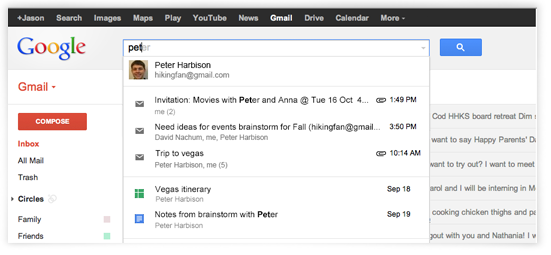
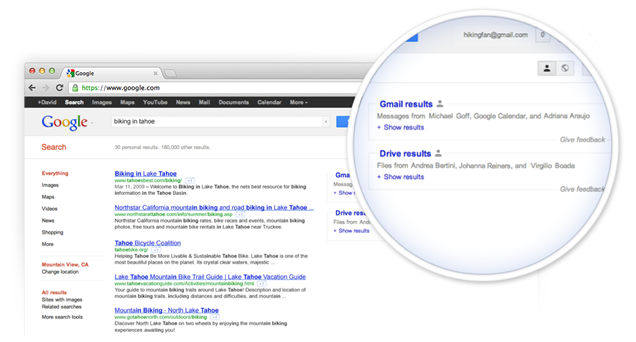
Put simply, the forthcoming search change allows users to seamlessly search for contacts, specific emails, Google+ posts, and files from Drive, all in the beautiful blink of an eye, across Gmail and, at least, Google Search.
Seriously. Go sign up for it. Right now: https://www.google.com/experimental/gmailfieldtrial (You can thank me later.)


Put simply, the forthcoming search change allows users to seamlessly search for contacts, specific emails, Google+ posts, and files from Drive, all in the beautiful blink of an eye, across Gmail and, at least, Google Search.
Seriously. Go sign up for it. Right now: https://www.google.com/experimental/gmailfieldtrial (You can thank me later.)


Labels:
Gmail,
Google,
Google Docs,
Google Drive,
Tech News,
Tips
Wednesday, October 3, 2012
Gmail Update: Search Inside Attachments
Via Google Operating System
If you're like me, you love updates to Gmail and you love Gmail's search capability.
Well, thanks to Alex Chitu over at GOS, I learned Gmail's search powers have been given some awesome sauce: As the title indicates, users can now search inside the text of their attachments.
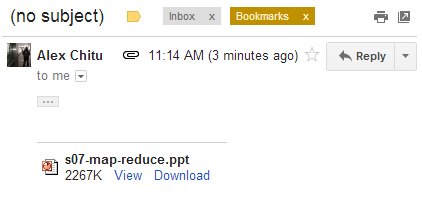
Witness the two screenshots from Alex, below. The selected email lacks a subject header and any body text, yet Gmail found the text from inside a .ppt file, using the search terms.
You can narrow your search down by using has:attachment and including the file type (pdf, doc, xls, etc.) with filename:[filetype].
Enjoy! Thanks, Alex!!

If you're like me, you love updates to Gmail and you love Gmail's search capability.
Well, thanks to Alex Chitu over at GOS, I learned Gmail's search powers have been given some awesome sauce: As the title indicates, users can now search inside the text of their attachments.
Witness the two screenshots from Alex, below. The selected email lacks a subject header and any body text, yet Gmail found the text from inside a .ppt file, using the search terms.
You can narrow your search down by using has:attachment and including the file type (pdf, doc, xls, etc.) with filename:[filetype].
Enjoy! Thanks, Alex!!

Saturday, August 25, 2012
A Majorily Minor Chrome Discovery: Use "Tab" to Navigate Chrome's Omnibox Results
For a long time, I whined and moped about how in Firefox, I could tab down from the address bar to various search results, while in Chrome I had to use the arrow keys to navigate between them. I imagine most of you will now grasp the meaning behind this post's title.
Well, fellow keyboard shortcut geeks, rejoice because we can now use "Tab" to navigate omnibox results!
Yep, go ahead and give it a whirl. You might think it would conflict with tab-to-search, yet they exist in perfect keyboard shortcut harmony. Ah, the world is saved. The galaxy is at peace. Samus may now relax until the next Metroid installment.
By the way, if you seldom visit my Google+ lair, you might enjoy an earlier post about an extension for searching only your bookmarks.
Well, fellow keyboard shortcut geeks, rejoice because we can now use "Tab" to navigate omnibox results!
![]() |
| As Salieri would say, "Finally! Such an immense joy. Diletto straordinario!" |
By the way, if you seldom visit my Google+ lair, you might enjoy an earlier post about an extension for searching only your bookmarks.
Labels:
Chrome,
Keyboard Shortcuts,
Tech News,
Tips
Saturday, July 14, 2012
Chrome OS Keyboard Shortcut: Select Screen Shot Region
Okay, I'm about one year late to the party on this one, apparently, as noted by the date from François' post from last August.
In case you missed it, I hope you enjoy the shortcut, via François Beaufort:
"<Ctrl> + <Shift> + <Maximize> [the key to the left of the dim screen key] = Take a screenshot of the selected region."
I'm all in favor of cutting out extra steps, and selecting a particular range of a screen shot was certainly one of them. Provecho.
In case you missed it, I hope you enjoy the shortcut, via François Beaufort:
"<Ctrl> + <Shift> + <Maximize> [the key to the left of the dim screen key] = Take a screenshot of the selected region."
![]() |
| Selected range screenshot of my Apps/place usually known as the desktop. |
Labels:
Chrome OS,
Chromebook,
Keyboard Shortcuts,
Tech News,
Tips
Thursday, April 19, 2012
New, Online General Conference Music Player
Cross-posted from my Google+ account
lds.org has added a simple, dynamic, and awesome General Conference music player at http://www.lds.org/general-conference/music?lang=eng
A user can listen to music from every General Conference session, dating back to October 2008, with more apparently on the way.
The player includes snappy features like click-to-play, group selection, randomization, and, perhaps my favorite, keyboard shortcuts (space bar for play/pause and arrow keys for skip).
![]() |
| Rejoice! |
I'm also pleased to see there's easy access to downloads. On the other hand, I'm failing to see any bulk download options. If there are bulk download options already built-in, and I'm simply missing them, would someone please let me know?
Friday, March 9, 2012
How to Fix Your Cr-48's Dead Battery
I've been meaning to post this one for a while . . . Sorry.
For a long time, my Cr-48 refused to carry a battery charge. :( Thankfully, however, my wife also had a Cr-48 and condescended to letting me use it (thanks, Honey, I love you!).
On the other hand, I did want a fix and, last month, I found one, thanks to Dinu and the chromebook ninjas:
Well, folks, I tried this, and it worked! Also, it worked much faster than charging for 2-3 days. In fact, I believe it charged up fine, the first time around.
And there was much rejoicing.
For a long time, my Cr-48 refused to carry a battery charge. :( Thankfully, however, my wife also had a Cr-48 and condescended to letting me use it (thanks, Honey, I love you!).
On the other hand, I did want a fix and, last month, I found one, thanks to Dinu and the chromebook ninjas:
1. Plug the power adapter into a live outlet.
2. In one second intervals, connect and disconnect the power adapter to the Chrome Notebook (1 seconds plugged in, 1 seconds unplugged, 1 seconds plugged in, etc).
3. Do this about 12 to 24 times.
4. An orange light should appear near where the power adapter connects to the notebook.
5. Once the orange light appears, allow the system to fully charge for 2 to 3 days.
(Note) You may be required to plug and unplug several times before the orange light will come on.
. . . Also, Chromebook’s community manager +Melissa Daniels suggested the replacement power adapter that will work with your Cr48. Here is the amazon link.
![]() |
| Solution and image thanks to Chromestory.com |
Well, folks, I tried this, and it worked! Also, it worked much faster than charging for 2-3 days. In fact, I believe it charged up fine, the first time around.
And there was much rejoicing.
Labels:
Chromebook,
Tech News,
Tips
Monday, January 30, 2012
NEWLY UNEARTHED (& UNDOCUMENTED) KEYBOARD SHORTCUT FOR HYPERLINKS IN GMAIL
Well keyboard shortcut lovers, I often grumbled to myself about why Gmail lacked a keyboard shortcut (unlike Docs) for creating a hyperlink.
GRUMBLE NO MORE!
As this lovely keyboard shortcut was new to me, I assumed it was part of the new look Gmail. Take heart, ye traditionalists, ctrl + k works in the "old" Gmail, as well.
May all your hyperlinks be brighter and faster with ctrl + k.
\m/
GRUMBLE NO MORE!
Ctrl + k = create a hyperlink in Gmail
![]() |
| W00t. |
May all your hyperlinks be brighter and faster with ctrl + k.
\m/
Labels:
Gmail,
Keyboard Shortcuts,
Tech News,
Tips
Wednesday, January 25, 2012
Saving Gobs of Money in Textbook Purchases: upcdatabase.com -- the ULTIMATE Textbook Deal Finder
I think many of you will agree with this statement: A textbook (or, for me, a casebook) is a textbook is a textbook.
Sometime in the past year or two, I discovered what I consider the ultimate student's tool to finding low-cost textbooks: upcdatabase.com
![]() |
| Who knew acquiring textbooks could be so painless, both in terms of time spent researching and money spent purchasing? |
The site provides a meta search of countless textbook providers, sortable by total price (my personal favorite), merchant, condition, book price, or shipping cost. There's even a direct link to the merchant's webpage where the book is offered.
I'm ashamed I just recently thought to post about this remarkable tool, seeing as I'm already wrapping up my third and final year of law school . . . For those of you still braving the east wind of textbook expenditures, may this offering provide you peace of mind, fatness of wallet, and a refuge from the storm.
I <3 upcdatabase.com and the free, open market. GO CAPITALISM!!
(Oh, and if you're curious just how much you could save on a given purchase, determine the UPC code for the book, click on "Look Up" (found under Actions:), enter the UPC code, and compare the various results. I'm confident you'll be very happy with the cost separation.)
Labels:
Saving Money,
School,
Textbooks,
Tips
Friday, January 20, 2012
Eating Crow and Liking (er, +1ing) the New Gmail
Gasp! Yes, CA readers, it's true: About last Friday or so, I decided I would take the new Gmail challenge and dive into the new interface. In other words, I decided to use the new look for at least a day or two to decide whether I would really get used to it, as I had heard others report they did.
As a former critic of the new appearance, let me say I now strongly prefer it to the old look. DOUBLE GASP!! Ironically, one of my biggest hangups became, perhaps, my favorite feature: The minimalism.
That's right, kids, the new interface cuts straight to the email. Some complain there's too much white space. I'll tell you what, click on the big gear and select Compact -- that will display plenty of emails. On the other hand, I really like the "Cozy" density and cringe to think of the stress on my eyes, reverting back to compact-style.
And, talking of white space, here's a further irony: Getting rid of many "buttons and knobs" (thank you, Arthur Weasley), I feel more comfortable and focused on my email.
At the end of the day, users still must opt-in to use the new-look Gmail, and this after about two or three months out of the gate . . . I'm unsure what the hold up is. On the other hand, I definitely suggest giving the new look a shot for a couple days and then comparing/contrasting. I definitely think old habits can die hard, especially in Gmail land (see the comments and be warned of some potty mouths). So, take a chance, and if you also decide to make the switch, I hope your diet will be crow free, unlike mine. Provecho!
As a former critic of the new appearance, let me say I now strongly prefer it to the old look. DOUBLE GASP!! Ironically, one of my biggest hangups became, perhaps, my favorite feature: The minimalism.
![]() |
| In the new-look Gmail, t's all about the emails, peepers. |
And, talking of white space, here's a further irony: Getting rid of many "buttons and knobs" (thank you, Arthur Weasley), I feel more comfortable and focused on my email.
In short, when I went back to take a peek at the old Gmail, my eyes felt strained, and I felt stranded in a cluttered garage.
![]() |
| Yes, the old look's more traditional and has less "white space," yet, consider its comparative clutter. |
![]() |
| Ahhh. Now my eyes focus on the email (because, seriously, why would I want to focus on my chat search box, etc.?) |
I'll be candid in saying I feel hesitant about the degree of transparency on some themes, like Turf. Yet, maybe that's just me or, like my conversion experience, simply an initial, gut reaction.
![]() |
| I imagine some might like less turf behind their email. |
Thursday, December 1, 2011
How to get the new Google bar (early)
Cross-posted from my Google+ account.
For everyone who shares my Google nerdery. (Note: Deleting my cache and cookies was insufficient for me; I had to enter the proffered code.)
The trick is to enter some code into your browser's JavaScript's console, as described on Google Operating System.
What are your initial reactions? I like the streamlining. The menu rollover's more time consuming for me than I hoped. I think I agree with many comments I've seen about Google bar's size . . . maybe it will go on a diet, soon. Finally, I assumed the top-right section of the bar would dangle more Google+ bait for the non-initiated: Maybe Google's content with the Sign in button, coupled with +You being the first option on the new (and automatically displayed on google.com) rollover/drop-down menu.
For everyone who shares my Google nerdery. (Note: Deleting my cache and cookies was insufficient for me; I had to enter the proffered code.)
The trick is to enter some code into your browser's JavaScript's console, as described on Google Operating System.
![]() |
| Thanks to Alex Chitu for the screenshot and instructions. |
![]() |
| For comparison: The now-old black bar, before taking size-enlarging steroids. |
Wednesday, October 5, 2011
(Very) Basic Image Editor Lands in Chrome OS 0.16.1122.0
Some of us wanted it (at least I did) and the Chrome OS team supplied it: A basic image editor. Sadly, for me, it's one feature short of the main feature I cared about: Blur/smudge. Ah, well, at least it has crop.
Really, though, is this some secret plot for me to keep using Picnik, even though I much prefer image editors like Awesome Screenshot or Aviary Image Editor? Sigh.
Also new in this build: The Wi-Fi icon now has lines on it to more clearly delineate current signal strength, I assume (I actually suggested this a while back and am less thrilled with it, in practice); the plus tab button is now an inchoate + button . . . once I hover my mouse over the empty diamond, the + comes to life! I can appreciate the hip GUI-ness of it, and I can also see some folks (especially those over 50) scratching their heads about where the plus tab button is.
This is the extent of what I, and at least WReithmeyer, have noticed that I consider worth mentioning.
What hidden goodies have you guys noticed that you'd like to add to the pile of fun?
![]() |
| Click the Gallery button and . . . |
![]() |
| Now we can auto-fix, crop, brighten, rotate, or undo to our heart's content (or upload to Picasa, via Share button). Maybe blur/smudge will arrive by Christmas -- sorry, Winter Solstace. |
Labels:
Chrome OS,
Chromebook,
Cr-48,
Tech News,
Tips
Thursday, September 22, 2011
Locked vs. Unlocked Google+ Albums
Again, another Google+ account cross-post.
When did Google add this feature?? Regardless, I love and am impressed with how Google is giving users control over their content (at least as far as accessibility among other users is concerned). I also enjoy the explanation, coupled with the feature's intuitive use.
What do you think?
When did Google add this feature?? Regardless, I love and am impressed with how Google is giving users control over their content (at least as far as accessibility among other users is concerned). I also enjoy the explanation, coupled with the feature's intuitive use.
What do you think?
Friday, September 16, 2011
New in Blogger: Post Albums
Hats off to my wife for pointing this one out to me: Yes, F-Word, now that the wife has beaten me to a tech news scoop, I have (once more) relinquished my man card.
So, here's the story. My wife's basking in the warmth of some pictures from one of her recent, private posts, only to realize there're some kind of Google+-like thumbnails at the bottom of the screen . . . After some investigation, I've concluded each Blogger post now has it's own album of post-specific photos. Observe:
An added bonus (in addition to the album-style rendering, I mean) seems to be that I can now access post pictures, absent having to open up/reload a new tab. Nice.
How much does or will this have to do with Google+ integration, as I originally assumed?
So, here's the story. My wife's basking in the warmth of some pictures from one of her recent, private posts, only to realize there're some kind of Google+-like thumbnails at the bottom of the screen . . . After some investigation, I've concluded each Blogger post now has it's own album of post-specific photos. Observe:
![]() |
| Blogger post albums: Who knew, right? |
How much does or will this have to do with Google+ integration, as I originally assumed?
Thursday, September 1, 2011
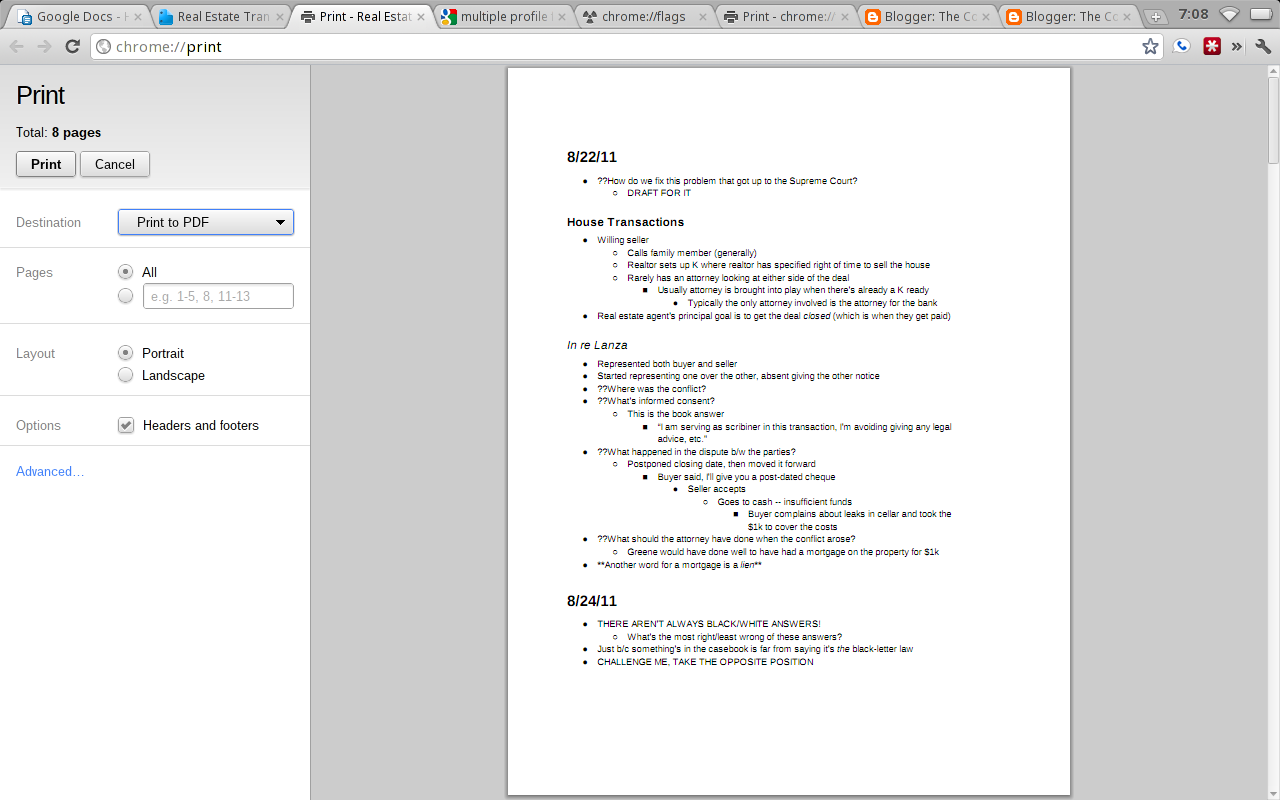
Print Preview Lands in Chrome OS (Sort Of)
You may recall how, a few weeks ago, I lamented Chrome OS's lack of print preview. Print preview fans, strap on your seat belts because print preview has landed in Chrome OS . . . as a flag. In case this term sounds new, go to about:flags or chrome://flags, to see the myriad EXPERIMENTAL features for chrome/chrome os there. Frankly, I strongly suggest you avoid enabling a flag unless you're determined to have it (as I am with click-to-play and print preview). With that caveat, behold the screenshots:
So, there you have it. In my very brief tests, I ran into only one page that failed to load a preview correctly, and I was able to do a refresh, and it worked fine. While I'm sure there will be plenty of hiccups, here and there, you may want to give the print preview flag some love, especially if you love print preview like I do.
By the way, the whole reason I blundered upon this flag, in the first place, was because I was searching for a multiple profiles trigger. Renji, or anyone else, how can I set up multiple profiles on Chrome OS, inside one account, like I can on a dev/canary Windows build of Chrome?
Thanks for reading, and happy previewing!
![]() |
| Is the add/remove URL headers/footers new to print preview, or just new to me? |
![]() |
| Who knew my Real Estate Transactions notes could look so good? |
![]() |
| Ah, spreadsheet print preview! |
By the way, the whole reason I blundered upon this flag, in the first place, was because I was searching for a multiple profiles trigger. Renji, or anyone else, how can I set up multiple profiles on Chrome OS, inside one account, like I can on a dev/canary Windows build of Chrome?
Thanks for reading, and happy previewing!
Labels:
Chrome OS,
Chromebook,
Cloud Print,
Cr-48,
Print Preview,
Tech News,
Tips
Tuesday, August 30, 2011
Omnibox History Sync Now Available in Chrome
P.S. I forgot to mention Dinu spotted this in Chromium, back in May: http://chromestory.com/2011/05/google-chrome-to-sync-typed-urls-and-browsing-sessions-now-in-chromium/
Well, folks, the picture and caption say it all. I updated my Cr-48 this morning to 0.15.950.0 and saw a message on the new tab page, telling me omnibox history sync is now enabled. Hurray!
Now all I need is for Alex, Dinu, or someone else to explain or find out exactly what this means. :)
![]() |
| Omnibox History Sync, now available |
Now all I need is for Alex, Dinu, or someone else to explain or find out exactly what this means. :)
Subscribe to:
Posts (Atom)